Download IPSW
Are you looking for the best IPSW to install the latest versions of iPhone software? The wait is over! Our website provides the latest and previous firmware versions for all Apple devices. Download the best IPSW for your iPhone and enjoy the newest features.


macOS 26.3 (25D125)
Released February 11, 2026macOS 26.3 (25D125) has been released for 48 devices

iOS 26.3 (23D127)
Released February 11, 2026iOS 26.3 (23D127) has been released for 30 devices
iPadOS 26.3 (23D127)
Released February 11, 2026iPadOS 26.3 (23D127) has been released for 60 devices
audioOS 9.9.18.6 (22M84)
Released July 29, 2025audioOS 9.9.18.6 (22M84) has been released for 116 devices

Product



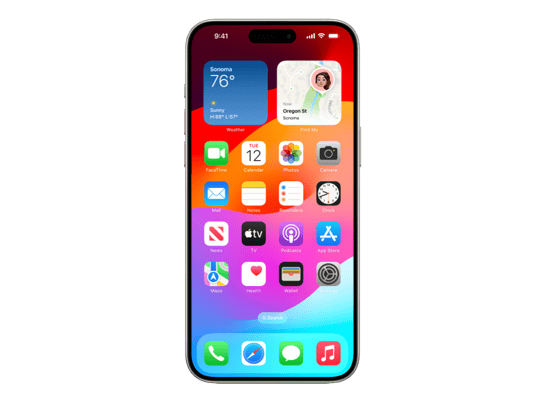
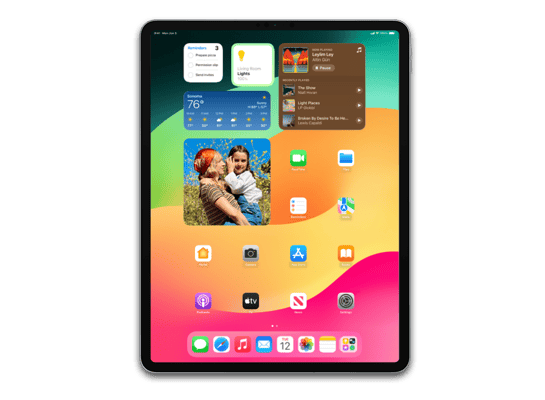
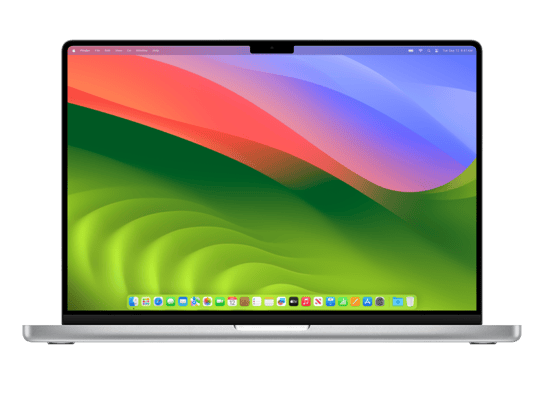


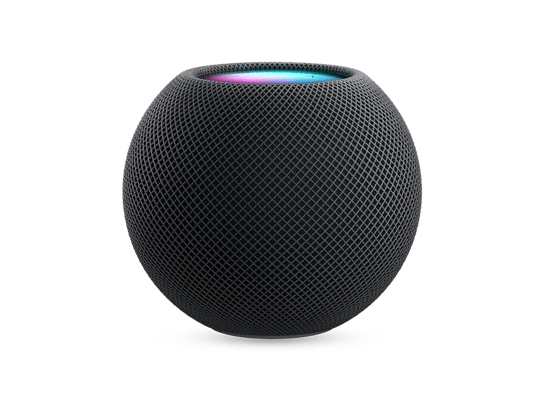
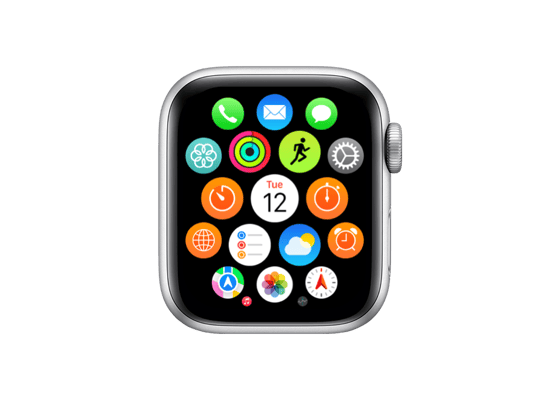
IPSW (iPhone software) is a file format used by Apple to install or update your firmware on its equipment included iOS, iPados, TvOS, VisionOS, HomePod software and recently MacOS on Apple Silicon Mac. All Apple devices use the same IPSW format for iOS-based firmware and its variants, allowing users to restore or update their devices through Finderers (on MacOS) or iTunes (on Windows). For Apple Silicon Mac, firmware updates are used using Apple Configuration 2 .
Following these steps will ensure your data remains safe during the update. However, I still recommend backing up your device beforehand as a precaution.
Learn how to backup your iPhone and iPad
iTunes will automatically cancel the process if it detects an incompatible file for your device. The only downside is having to download the correct file again, so please double-check before proceeding.
Yes, you can sideload iOS with IPSW files. Sideloading allows you to install custom or signed firmware versions, like IPSW iOS 15 or IPSW jailbreak versions. This is particularly useful for advanced users who need specific features or want to experiment with IPSW dev tools. Be cautious and always download files from trusted sources.
You're not downloading the files from my server—you're downloading them directly from Apple. This is evident from the download URLs, which point to Apple’s official IPSW hosting domain: updates.cdn-apple.com. Additionally, if these files were altered in any way, iTunes or Finder would reject them, since modified IPSW files cannot be installed.
An publishing candidate (RC) is a close final version of a software building during its Beta test phase, which represents the final phase before the official release. Before iOS/iPados 14.2, Apple referred to this stage as the Golden Master (GM). However, from 14.2, the company created instead of using the publishing candidate.


